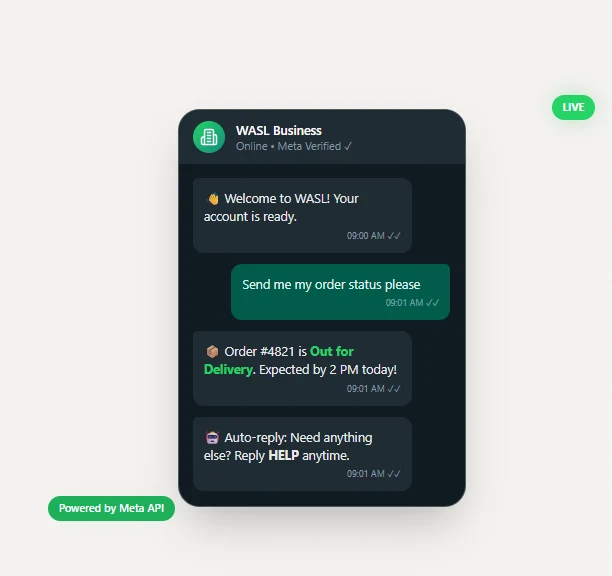
A visitor lands on your website at 11 PM. They have a question about pricing. They click your WhatsApp button. No one replies. By the next morning, they have already signed up with your competitor.
This is not a traffic problem. It is a WhatsApp automation problem.
WhatsApp now has over 3.3 billion monthly active users, and messages on the platform have open rates close to 98 percent. For businesses across South Asia, the Middle East, Latin America, and Europe, WhatsApp has become the primary customer communication channel. It is no longer email or live chat. Yet most websites still treat WhatsApp like a simple contact option. It remains reactive, manual, and dependent on someone being available to respond. That approach costs you leads, sales, and opportunities every single day. In this complete 2026 guide, you will learn how to automate WhatsApp messages for your website, starting from a simple click to chat button to building a fully automated system that captures leads, answers frequently asked questions, sends abandoned cart reminders, and qualifies prospects 24 hours a day.
What Is WhatsApp Message Automation?
WhatsApp message automation is the process of sending and responding to messages using pre-built workflows without manual effort. When connected to your website, it allows you to:
- A visitor submits a form and receives an instant WhatsApp message
- A customer asks a common question and gets an immediate reply
- A user abandons their cart and receives a recovery message
- A lead clicks your WhatsApp button and enters an automated sales flow
This ensures you never miss a lead, even outside working hours. For businesses focused on lead generation, customer support, or eCommerce, WhatsApp automation is no longer optional. It is essential for faster responses, higher conversions, and scalable customer communication.
WhatsApp Business App vs WhatsApp Business API Which One Do You Need
Most businesses choose the wrong setup and limit their growth. Here is a clear comparison to help you decide.
| Feature | WhatsApp Business App Free | WhatsApp Business API Paid |
|---|---|---|
| Best For | Micro businesses and solopreneurs | Growing brands, eCommerce, SaaS |
| Automation | Basic greetings and away messages | Advanced automation, chatbots, workflows |
| Website Integration | Static click to chat link | Dynamic WhatsApp chat widget with automation |
| Broadcasting | Up to 256 contacts | Scalable messaging to opted in users |
| Multi Agent Access | Single device | Shared team inbox |
| CRM Integration | Not available | HubSpot, Salesforce, Zoho, Shopify |
| Cost | Free | Pay per conversation via providers |
If you handle fewer than 50 messages per day and do not need automation, the WhatsApp Business App is enough. If you want WhatsApp automation for your website including lead capture, auto replies, and sales flows, you need the WhatsApp Business API.
Important 2026 update: Meta has fully shifted to the Cloud API. You no longer need server setup or maintenance. It is faster, more reliable, and built for high volume messaging at scale.
How to Set Up WhatsApp Automation for Your Website

WhatsApp automation can be set up in two ways depending on your needs. You can start with a simple click to chat setup or use the WhatsApp Business API for full automation, including lead capture, replies, and customer follow ups. Below are both options explained step by step.
Option A: Click-to-Chat Setup (Free, No Coding Required)
If you want visitors to click a button on your website and land directly in your WhatsApp chat, you can set this up in under 10 minutes.
Step 1: Generate Your WhatsApp Link
Use this URL format:
https://wa.me/YOURCOUNTRYCODEPHONENUMBER?text=YourPrefilledMessage
Example:
Replace the phone number with your WhatsApp Business number. Include the country code. Remove the plus sign and all spaces.
Step 2: Add a Floating Button to Your Website
Paste this HTML snippet just before the </body> tag on your site:
html
<a href="https://wa.me/923001234567?text=Hello!%20I%20have%20a%20question." target="_blank" style="position:fixed; bottom:20px; right:20px; background:#25D366; border-radius:50%; width:60px; height:60px; display:flex; align-items:center; justify-content:center; box-shadow:2px 2px 10px rgba(0,0,0,0.3); z-index:9999; text-decoration:none;"> <img src="https://upload.wikimedia.org/wikipedia/commons/6/6b/WhatsApp.svg" width="32" height="32" alt="Chat with us on WhatsApp"> </a>
For WordPress: Install the “Click to Chat” or “WP WhatsApp Chat” plugin to avoid editing code directly.
For Shopify: Go to Online Store, then Themes, then Edit Code. Paste the snippet into theme.liquid.
Step 3: Create Quick Replies Inside the App
Open your WhatsApp Business App and go to Business Tools, then Quick Replies. Create keyboard shortcuts for your most common responses:
- /price sends your full pricing list.
- /hours sends your business hours.
- /services sends your service menu.
These are not fully automated responses, but they let you reply in one tap during live conversations. The core limitation of Option A: None of this works without a human online. The moment your team goes offline, leads stop getting answers. For real, around-the-clock automation, you need the API.
Option B: WhatsApp Business API with Automated Chat Widget (Full Setup)

This is where the real power starts. The WhatsApp Business API connects your website to fully automated workflows that run 24 hours a day and 7 days a week, capturing leads, answering queries, and following up with customers without any manual effort.
Step 1: Choose a Business Solution Provider (BSP)
You cannot access the WhatsApp Business API directly from Meta. You need an authorized Business Solution Provider for WhatsApp Business API integration to set it up and manage your automation.
| BSP | Best For | Notable Strength |
|---|---|---|
| WATI | SMBs and eCommerce | No code flow builder |
| AiSensy | South Asia and Middle East markets | Broadcast campaigns and marketing tools |
| Twilio | Developers and custom builds | Full API control and flexibility |
| Respond.io | Multi channel teams | Omnichannel inbox management |
| ManyChat | Instagram and WhatsApp marketers | Easy marketing automation |
| 360dialog | High volume businesses and agencies | Low markup and scalable infrastructure |
| Wasl by Odysense | Businesses looking for integrated WhatsApp automation | Website connected WhatsApp automation with lead capture and chatbot workflows |
How to choose: If you want a no code solution with a visual flow builder, go for WATI or AiSensy. If you need full developer level control, Twilio or 360dialog are better. Wasl by Odysense offers an all in one WhatsApp automation system that supports no code workflows, advanced integrations, and flexible setup based on your business needs.
Step 2: Complete Meta Business Verification
This step takes 2 to 7 business days. Start it before anything else.
- Go to business.facebook.com and create a Meta Business Manager account.
- Navigate to Security Center and click Start Verification.
- Submit one of the following documents: a certificate of incorporation, a business utility bill, or a tax registration certificate.
- Wait for Meta’s approval.
Pro tip: The business name in your Meta Business Manager account must exactly match the name on your submitted documents. Mismatches are the most common cause of verification delays.
Step 3: Register a Dedicated Phone Number
Connect a phone number that is not active on any existing WhatsApp account. Most businesses purchase a new SIM card specifically for this. Your BSP walks you through the registration process inside their dashboard.
Step 4: Create and Submit Message Templates
Every business-initiated message on WhatsApp must use a pre-approved template. You submit these through your BSP dashboard and Meta typically reviews them within a few hours.
Template categories in 2026:
- Marketing: Promotional messages, offers, cart recovery (highest cost per message)
- Utility: Order confirmations, shipping updates, appointment reminders
- Authentication: One-time passwords and login codes
- Service: Free-form responses within the 24-hour conversation window
Hi {{1}},
You left something behind! 🛒
Your cart at [Store Name] is still waiting for you.
👉 Complete your order here:
{{2}}
Reply STOP to opt out anytime.
Step 5: Build Your Automation Flow
Most BSPs include a no-code visual flow builder where you map the full conversation journey. Here is how a basic lead capture flow works:
Step 6: Embed the Chat Widget on Your Website
Once your flow goes live, your BSP provides a JavaScript snippet:
html
<!-- Paste inside your <head> or before </body> -->
<script>
(function(w,d,s,l,i){
// Your BSP’s widget initialization code
// This creates the chat bubble on your site
})(window,document,'script','watiWidget','YOUR_API_KEY');
</script>
For WordPress, most BSPs publish a dedicated plugin.
For Shopify, check the Shopify App Store for your BSP’s official app.
For custom HTML sites, paste the snippet directly into your code.
High-ROI WhatsApp Automation Use Cases for Your Website

Once your integration goes live, these are the automations that deliver the fastest return on investment.
1. Website Form to Instant WhatsApp Follow-Up
When a visitor submits a contact form, send an immediate WhatsApp message instead of or alongside an email.
Setup: Use Zapier or Make (formerly Integromat) to connect your form tool (Gravity Forms, Typeform, WPForms) to your BSP’s API.
Result: The lead receives a WhatsApp message within 30 seconds of submitting the form. Research from HubSpot consistently shows that response times under 5 minutes increase lead qualification rates dramatically. WhatsApp response rates run 3 to 5 times higher than email for first-touch outreach.
2. Abandoned Cart Recovery
This is the single highest-ROI use case for e-commerce stores.
How it works: A user adds items to their cart and leaves without purchasing. Your Shopify or WooCommerce store triggers a webhook after 30 minutes.
The BSP sends a pre-approved WhatsApp template: “Hey [Name], you left [Product] in your cart. Here is a 10% discount code just for you: SAVE10. Grab it before it expires: [link].”
Industry benchmark: WhatsApp abandoned cart messages consistently achieve 45 to 60% click-through rates, compared to 5 to 10% for equivalent email campaigns (source: WATI customer benchmarks, 2025).
3. Order Tracking on Demand
Connect your e-commerce backend so customers can type “Where is my order?” and receive an automatic reply with their real-time tracking link. No human agent needed, no hold times, no frustration.
4. Lead Qualification Chatbot
Instead of having your sales team manually qualify every inbound lead, your WhatsApp bot asks the right questions, scores the lead automatically, and escalates only the hot ones to a human agent.
Example:
- “What is your monthly budget for this solution?”
- “How many team members will use the tool?”
- “When are you looking to get started?”
Leads that meet your criteria get automatically assigned to a sales rep with a Slack or CRM notification. Leads that do not meet your threshold receive a nurture sequence instead.
5. Appointment Reminders
Send automated WhatsApp reminders 24 hours and 1 hour before a booked appointment. Include a reschedule link in each message. This single automation reduces no-show rates by 30 to 40% across service businesses (Calendly internal data, 2025).
Connecting WhatsApp to Your CRM and Website Stack

The real power of WhatsApp automation comes when you connect it with your existing tools.
WhatsApp and HubSpot: New WhatsApp contacts automatically become CRM records. Conversation history syncs to the contact’s activity timeline. You can trigger WhatsApp sequences directly from deal stage changes.
WhatsApp and Shopify: Order confirmations, shipping updates, delivery notifications, and review requests all fire through WhatsApp instead of email, with dramatically higher open and response rates.
WhatsApp and Google Sheets via Zapier: Every new WhatsApp lead logs as a row in your spreadsheet, capturing name, number, query category, and timestamp automatically.
WhatsApp and Calendly: After a lead qualifies inside your bot flow, the bot sends a Calendly link and confirms the booking directly within the WhatsApp conversation.
WhatsApp Automation Compliance Rules for 2026

Below are the WhatsApp Automation Compliance Rules for 2026.
- Meta has strict policies for WhatsApp automation in 2026 that every business must follow.
- The 24 hour rule allows free messaging only within an active user conversation. After that, only approved templates can be used.
- You must also collect explicit user opt in before sending any WhatsApp messages. Pre checked or implied consent is not allowed.
- AI chatbots must be task based, such as support, booking, or order tracking. Open ended AI assistants are not allowed on WhatsApp Business API.
- For regions like the EU and GCC, GDPR style compliance applies, including opt out options and data protection rules.
How to Avoid Getting Your Number Banned
Avoiding bans on WhatsApp Business API is about consistently following Meta’s policies. Never send messages to users who have not opted in, as this is the fastest way to get your number restricted or permanently banned. Maintain good message quality by avoiding spam-like content, excessive promotions, or irrelevant messaging. Always honor opt-outs immediately when a user replies with STOP or unsubscribe. Start with low message volumes and gradually scale your sending activity instead of sending bulk messages on a new number. Regularly monitor your quality rating inside Meta Business Manager and reduce activity if it drops to low.
No-Code WhatsApp Automation Tools: Full Comparison

WATI: Works best for small to medium businesses that want everything in one place. The flow builder is intuitive enough for non-technical users, and it includes a shared team inbox, broadcast campaigns, and native Shopify and WooCommerce integrations.
AiSensy: The leading choice across South Asia and the Middle East. It offers competitive pricing, strong broadcast campaign features, and a growing library of pre-built templates, making it well suited for businesses running WhatsApp marketing at scale.
Wasl by Odysense: A full WhatsApp automation system designed for businesses that want a managed, website-integrated solution. It supports lead capture, chatbot flows, and flexible automation setups tailored to specific business needs.
ManyChat: Makes the most sense if you already use it for Instagram or Facebook automation. Adding WhatsApp is straightforward, and the platform is built more for marketers than developers.
Zapier and Make: These are not WhatsApp platforms themselves but act as the critical connection layer. They connect website forms, CRMs, e-commerce stores, or other tools to your BSP via webhooks. For triggering WhatsApp messages from form submissions, Zapier is often the most accessible option for non-technical users.
Twilio: Provides businesses with in-house developers the most flexibility. It offers full API control, detailed documentation, and the ability to build highly custom automation flows. The technical barrier is higher, but there are virtually no platform limitations on what you can build.
Platform-Specific Setup Instructions
Below are quick setup steps for the most commonly used platforms to help you integrate WhatsApp automation into your website without technical complexity.
WordPress
- Install a WhatsApp chat plugin such as WATI, Click to Chat, or your BSP’s official plugin
- Enter your WhatsApp number and configure your pre filled message in the plugin settings
- Set visibility rules to show on all pages or target specific pages like Pricing and Contact
- Enable the floating chat bubble and test on mobile
Shopify
- Go to your Shopify Admin, then Apps, and search for your BSP’s app
- Install and authenticate with your BSP account credentials
- Configure the widget appearance including position, brand color, and greeting message
- Use Shopify Flow to trigger order-related WhatsApp messages automatically
Custom HTML or Any Website Builder
Paste the widget code snippet from your BSP dashboard directly into your site’s <head> section or just before </body>. Webflow, Wix, and Squarespace all support this through their Custom Code blocks or integration settings panels.
FAQs
Can I Automate Whatsapp Messages for Free?
The WhatsApp Business App is free and supports basic auto replies like greeting messages and away messages. For full automation such as chatbots, drip sequences, and website triggered messages, you need the WhatsApp Business API, which charges per conversation at rates that vary by country and message category.
How Do I Set up Whatsapp Auto Reply for My Website?
The simplest path is the WhatsApp Business App’s built in greeting and away message features. For website triggered auto replies such as responding when a contact form gets submitted, you need a BSP plus a webhook integration through Zapier or Make.
Is Whatsapp Automation Allowed by Meta?
Yes, with specific rules. Task-based automation covering support, booking, and order updates is fully permitted. General-purpose AI chatbots without a defined business function have been prohibited since January 2026. All outbound messages must use pre-approved templates, and every user must have explicitly opted in before you message them.
How Do I Send Automatic Whatsapp Messages after a Form Submission?
Connect your form tool such as Gravity Forms, Typeform, or WPForms to your BSP using Zapier or Make. When the form gets submitted, the Zap or scenario triggers automatically and sends a WhatsApp message via your BSP’s API to the phone number provided in the form.
What Happens If Someone Messages Me Outside Business Hours?
With the WhatsApp Business API, your chatbot handles all incoming messages around the clock. The bot answers FAQs, collects lead information, and sets clear expectations about when a human agent will follow up. With the free WhatsApp Business App, you can configure an Away Message that sends automatically outside your specified business hours.
How Many Whatsapp Messages Can I Send per Day?
The free WhatsApp Business App supports broadcasting to up to 256 contacts per day. The WhatsApp Business API scales your daily message limit with your account’s quality rating, starting at 1,000 business initiated conversations per day and increasing to higher tiers as your quality rating improves and your usage history grows.
The businesses winning with WhatsApp automation right now are not necessarily the ones with the most sophisticated bots. They are the ones who respond fast, follow up consistently, and never let a lead go cold because nobody was online.
Do you have a specific question about setting up WhatsApp automation for your website or use case? Contact Odysense to book a free 20-minute audit, and we will map out the right setup for your business.

